Free image compressor
We’ve all been there. You try to upload a photo, and the site says the file is too big. Our free image compressor fixes that in a few seconds. Just drop in your JPG, PNG, or WebP image, and you’ll get a much lighter file that still looks sharp.
There’s nothing to download and no account to create. Try the tool below and see how much space you save.
Image Compressor
Compress up to 10 images for free. Original image dimensions are preserved.
What Does an Image Compressor Actually Do?
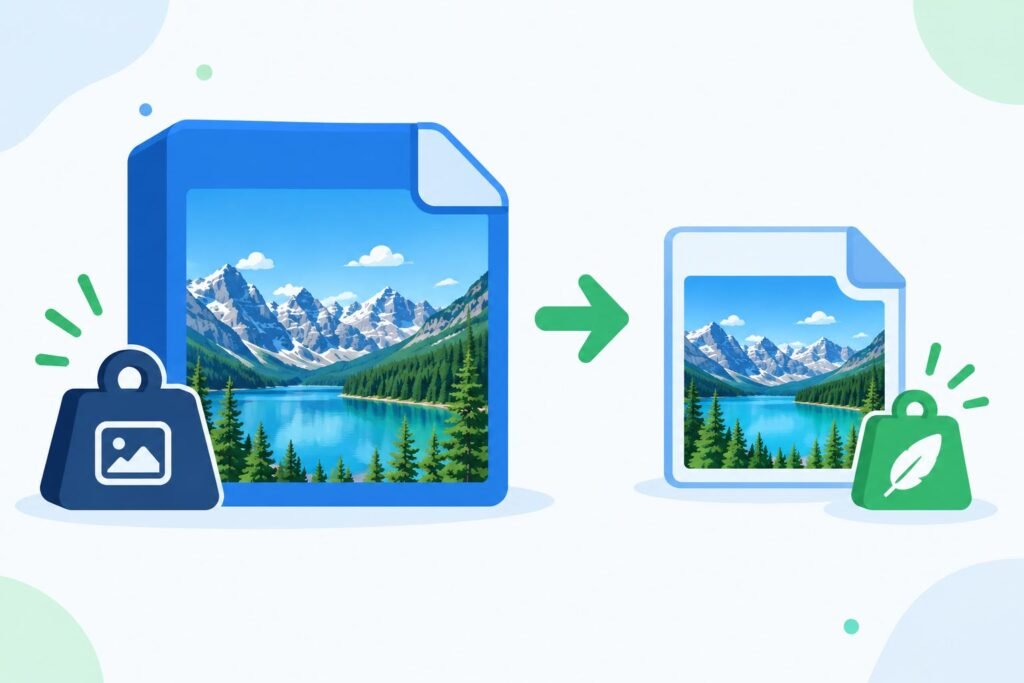
An image compressor makes a picture’s file size smaller. It does this by trimming away data your eyes can’t really notice. The photo looks the same to you, but it weighs far less.
Think about the photos from your phone. Many of them are 4 or 5 MB each. After compression, the same photo is often under 1 MB. That’s a big difference when you have dozens of pictures to send or upload.
Why Bother Compressing Your Images?
You might wonder if it’s worth the extra step. It is, and here’s why.
Heavy images are one of the main reasons websites feel slow. Visitors don’t wait around, so a slow page often means a lost reader. Google also cares about speed, which means lighter pages have a better shot at ranking.
It helps outside of websites too. Compressed photos send faster on WhatsApp and email. They also use less mobile data, and they leave more room on your phone and cloud storage.
How to Use This Image Compressor
It takes about half a minute, even if you’ve never done it before.
Step 1: Add Your Photo
Click the upload box or simply drag your image into it. Got a few pictures? You can add them together.
H3: Step 2: Wait a Moment
The tool starts compressing right away. Most files are done within seconds.
H3: Step 3: Download and Use It
Check the new file size, then hit download. That’s it. Your smaller image is ready to upload anywhere.
What You Get With Our Image Compressor
Here’s what you can expect when you use it:
Use it with JPG, JPEG, PNG, or WebP. Whatever you’ve got on your phone or computer, it can probably handle it.
Your photos stay crisp. You’ll shrink the file, not the quality.
It’s quick. Even a big photo is usually done before you can switch tabs.
Got ten pictures to fix? Drop them all in together and save yourself the hassle.
No payment and no sign-up. Open the page and get started.
Phone, tablet, or laptop, it works the same on all of them.
Lossy vs Lossless Compression: What’s the Difference?
Sooner or later, every image compressor makes you pick between two options: lossy or lossless. The names sound technical, but the idea is simple.
Lossy Compression
Lossy compression permanently removes a small amount of image data. In return, you get the smallest possible file.
Lossless Compression
It’s a bit of detail. Nothing gets thrown away, so your image looks exactly like the original. The trade-off is size. You’ll save less space than you would with lossy. It’s the better choice for logos, screenshots, and anything with small, sharp text.
Which Image Format Should You Pick?
Not every image format shrinks the same way, so the one you choose matters more than you’d think.
Got a photo from your phone or camera? Go with JPG. It squeezes down nicely and still looks good. Need a logo, or a picture with a see-through background? PNG is your friend, because it keeps transparent areas clean. Then there’s WebP, the newer kid on the block. It usually gives you smaller files than both JPG and PNG, which is why a lot of website owners love it.
Not sure which to use? Start with JPG for photos and PNG for graphics. Then run the file through our image compressor and compare the sizes yourself.
Who Is This Tool For?
Honestly, anyone who handles photos. Still, a few groups get the most out of it:
Bloggers who want faster pages
Online sellers uploading lots of product photos
Students who must meet the size limits on exam or form portals
Job seekers filling in online applications
Anyone tired of “file too large” errors
A Few Tips for Better Results
First, resize your photo before compressing it. A 6000-pixel image is overkill for most websites. Second, pick the right format for the job. Third, avoid compressing the same file again and again, since quality drops a little each time. Finally, always keep your original photo safe, just in case you need it later.
If you publish images on a website, don’t forget alt text.
FAQs
Which formats can I use?
You can compress JPG, JPEG, PNG, and WebP images.
it work on any phone?
It works on Android, iPhone, tablets, and desktops.
How much smaller will my image get?
That depends on the photo. Still, savings of 50% to 90% are common for large images.
Does compressing images help SEO?
It can. Smaller images make pages load faster, and Google counts page speed in its rankings.
Ready to Shrink Your Images?
A good image compressor saves you time, storage, and data.